A Windows 10 bug could seriously affect SSD lifespan

In 2020, a Windows 10 bug ran SSD optimization much more often than it should have, which could wear the drives out prematurely. Microsoft fixed the problem in September 2020, so you no longer need to change any settings. Below, you’ll find what happened back then and what’s worth knowing today about SSD lifespan.
What happened in 2020?
In recent years, Microsoft has adapted the Windows operating system to take advantage of fast storage media, updating the defragmentation utility built into Windows so that it optimizes SSDs too.
SSD technology has become very cheap, and the price is very good compared with the performance gains it offers. Unlike the old hard disk, which uses motors, metal platters and read/write heads, SSDs are made of NAND (flash) memory chips. A major advantage of this technology, besides its high performance, is its resistance to shocks and knocks.
However, TechSpot reported that, starting with the Windows 10 update released in May 2020 (version 2004), Windows ran the optimization process far too often, which made the storage medium wear out faster. Although it should have run defragmentation only once a month, to correct certain limitations of the NT file system (NTFS), a bug caused the process to be launched several times.
More precisely, the app didn’t remember the date of the last optimization, so the process could start at every restart. Microsoft fixed the problem with update KB4571744 (build 19041.488), released in September 2020 and then included in the regular cumulative updates. Any computer updated after that date no longer has the bug.
Does the problem still exist in 2026?
No. The bug was fixed in 2020, and Windows 10 has not received free security updates since October 14, 2025. If your company still has computers running Windows 10, the real problem today is the lack of security updates, not disk optimization: see the article Are you ready for Windows 11?.
On Windows 11, the same utility automatically optimizes SSDs once a week using the TRIM command: it tells the SSD which blocks are no longer in use, so it can free them up in advance. TRIM doesn’t wear out the SSD; on the contrary, it helps it stay fast.
Should you turn off scheduled disk optimization?
No. In 2020, some users turned off scheduled optimization as a temporary workaround until the bug was fixed, but there’s no reason to do so today: without optimization, the SSD no longer receives the TRIM command regularly and can become slower over time. You can, however, check at any time that the settings are correct:
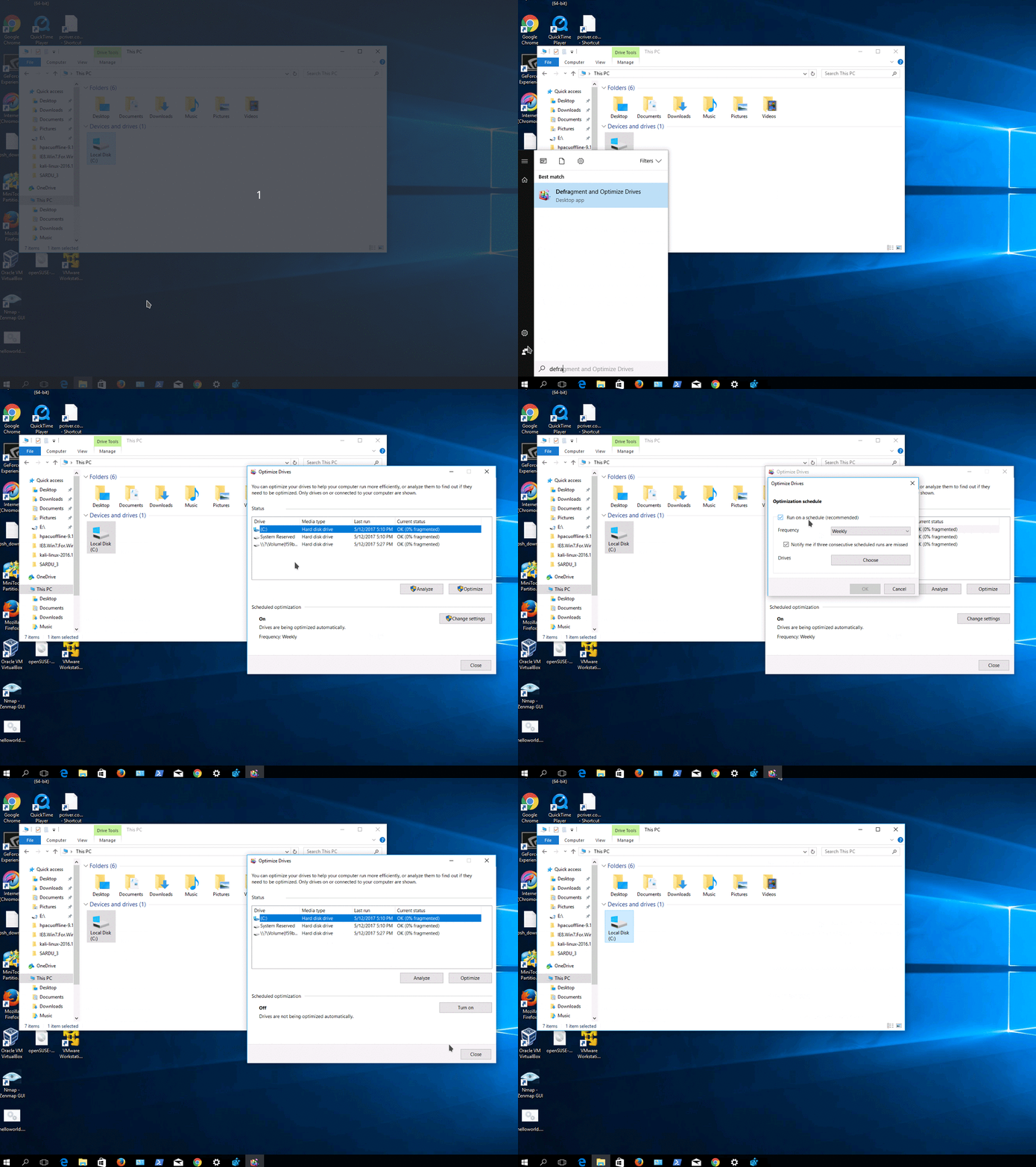
- Type “defrag” in the search bar and open the Defragment and Optimize Drives app.
- In the Media type column, SSDs appear as Solid state drive, and classic hard disks as Hard disk drive. The Current status column should show OK.
- Click Change settings and check that the Run on a schedule (recommended) option is checked, with the frequency set to Weekly.
- Close the open windows.
How long does an SSD last?
Manufacturers express an SSD’s endurance in TBW (terabytes written), meaning the total volume of data that can be written to it during the warranty period. For today’s SSDs, the value is in the hundreds of terabytes, far more than a typical office computer writes in several years of use. In practice, on most office computers, the SSD lasts at least as long as the rest of the computer.
That doesn’t mean an SSD can’t fail. Unlike hard disks, which often show signs before they give out (noises, slowdowns), SSDs can stop suddenly. That’s why backup remains a must.
How do you check an SSD’s health?
- In Windows 11: Settings > System > Storage > Advanced storage settings > Disks & volumes, then Properties for the disk you want. In the Drive health section, for NVMe SSDs, Windows shows the estimated remaining life, the available spare space and the temperature, and warns you if the disk is at risk of failing.
- With the manufacturer’s app: most SSD manufacturers offer a free program that shows the disk’s health and installs firmware updates.
- Through monitoring: in a company, disk health is tracked automatically on all computers and servers, so a disk that’s about to fail is replaced before any data is lost.
Disks are very important for any company, because that’s where the company’s data usually lives. Monitoring them closely and having a well-thought-out backup policy are absolutely necessary.
RezolvIT closely monitors its clients’ infrastructure and proposes proactive solutions to prevent unpleasant situations, whether we’re talking about backup, security solutions or implementing new technologies.
Tell us what’s slowing you down. We’ll call you.
It takes 30 seconds, and a specialist will call you back within 2 business hours.
- free IT & AI audit, no obligation
- a report with risks and concrete recommendations
- a clear offer, with a fixed monthly plan
Prefer the phone? 031 432 8681