Are you ready for Windows 11?
If your company still has computers running Windows 10, it needs to get ready as soon as possible: Windows 10 hasn’t received free security updates since October 14, 2025, and Windows 11 is the only version of Windows for PCs that Microsoft still updates at no extra cost. For compatible computers, upgrading from Windows 10 to Windows 11 is free.
We wrote this article in September 2021, a few weeks before Windows 11 was released (October 5, 2021). Since then, Windows 11 has become the standard, and the question is no longer “when do we upgrade” but “what do we do with the computers that can’t.” Below you’ll find the requirements, how to check your computers and what options you have in 2026.
What are the requirements for Windows 11?
In short, you need a compatible processor of at least 1 GHz with at least two cores, 4 GB of RAM and at least 64 GB of storage. On top of that, you need UEFI firmware with Secure Boot and a TPM 2.0 chip.
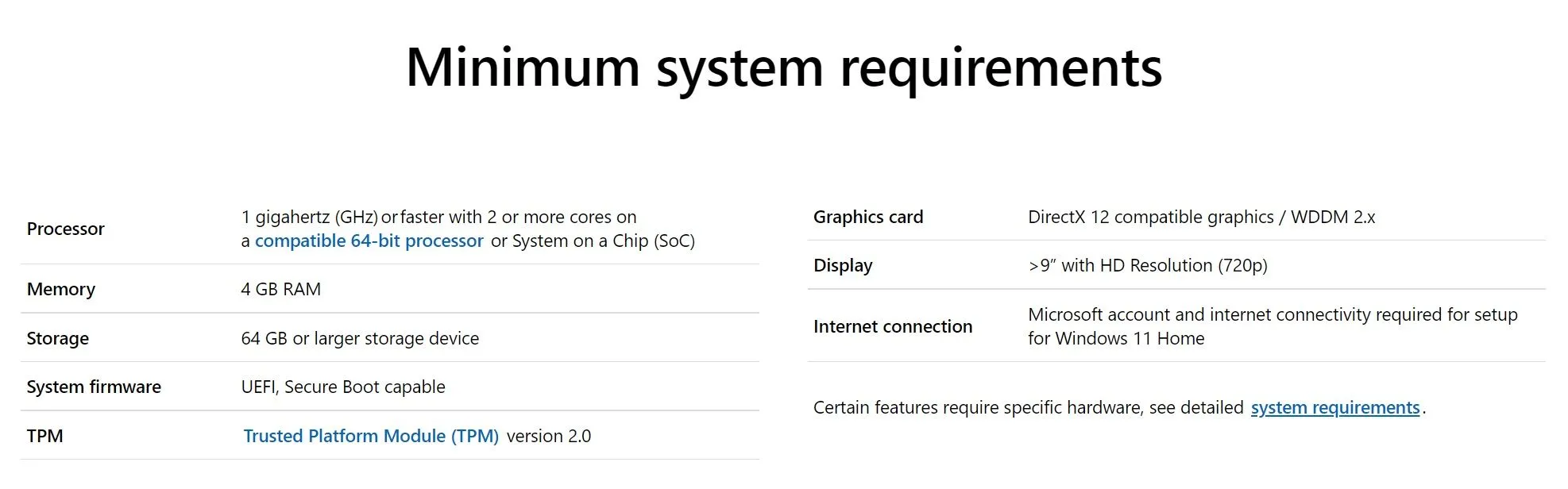
The requirement that rules out the most computers is the processor: Microsoft only supports the processors on its compatibility list. In general, 8th-generation or newer Intel processors and AMD Ryzen 2000 series or newer are compatible, which covers most computers bought since 2018.
The Trusted Platform Module (TPM) version 2.0 is a security chip, either separate or built into the processor, that stores encryption keys securely. Features such as BitLocker disk encryption and Windows Hello sign-in rely on it. On many computers the TPM is there but disabled in the BIOS/UEFI (it shows up as Intel PTT or AMD fTPM) and just needs to be turned on.
IT services for companies: tell me more →
How do you check whether a computer can run Windows 11?
- On a single computer: open Settings > Update & Security > Windows Update. If you see the offer to upgrade to Windows 11, the computer is compatible. You can also use Microsoft’s free PC Health Check app, which tells you exactly which requirement isn’t met.
- Across the company: take an inventory of all computers, with their processor, memory, disk and TPM status. An IT audit gives you this list, along with what can be upgraded and what needs replacing.
What do you do with computers that aren’t compatible?
You have three options:
- Replace them. For computers that are six or seven years old, this is usually the best option: a new computer with an SSD and Windows 11 works noticeably faster.
- Buy Extended Security Updates (ESU). Companies can pay, per computer, for Windows 10 security updates until October 2028 at the latest, and the cost rises every year. For home users, the ESU program ended on October 13, 2026. ESU is a transitional solution, not a long-term one.
- Use Windows 11 from the cloud. With Windows 365, employees work on a Windows 11 computer in the cloud, accessed from their existing device. Windows 10 computers used to access a Windows 365 Cloud PC get Extended Security Updates at no extra cost. Details in our article on Windows 365 Cloud PC.
We don’t recommend installing Windows 11 on incompatible computers by bypassing the checks: Microsoft doesn’t support these installations and doesn’t guarantee they’ll receive updates.
What has changed with Windows 11 updates?
With Windows 11, Microsoft moved to a single feature update per year, usually released in the second half of the year. Windows 10 had two. Security fixes still come monthly, through the usual cumulative updates.
Each annual version has a limited support period: 24 months for the Home and Pro editions and 36 months for Enterprise and Education. So simply having Windows 11 isn’t enough: computers need to be brought up regularly to a version that still receives updates.
How does a company move to Windows 11 without disruption?
- Inventory: find out which computers are compatible and what needs replacing.
- Applications: check that the software your company depends on (accounting, ERP, design applications, printer drivers) works on Windows 11. Test on a few computers first.
- Data: back up before the upgrade and make sure documents are synced to OneDrive or the company server.
- Security: turn on BitLocker and keep the recovery keys in a safe place, for example in the company’s Microsoft Entra ID account.
- Phasing: upgrade computers in groups, outside working hours, so people aren’t left idle.
Overall, Windows 11 has the power and security of Windows 10, with a redesigned look and new tools. For most compatible computers, the upgrade from Windows 10 goes smoothly, but a little preparation saves you from surprises. See also our articles on what happened to the free upgrade to Windows 10 and on the problem with end-of-life (EOL) technologies.
RezolvIT is an IT outsourcing company that helps the businesses it works with move to Windows 11 without disruption: computer inventory, application testing, upgrading and replacing old equipment, plus securing laptops used at home. You can start with a free IT audit.
Our 2021 article, written before the release: What we need to know about Windows 11
Tell us what’s slowing you down. We’ll call you.
It takes 30 seconds, and a specialist will call you back within 2 business hours.
- free IT & AI audit, no obligation
- a report with risks and concrete recommendations
- a clear offer, with a fixed monthly plan
Prefer the phone? 031 432 8681