Common Wi-Fi network problems and solutions
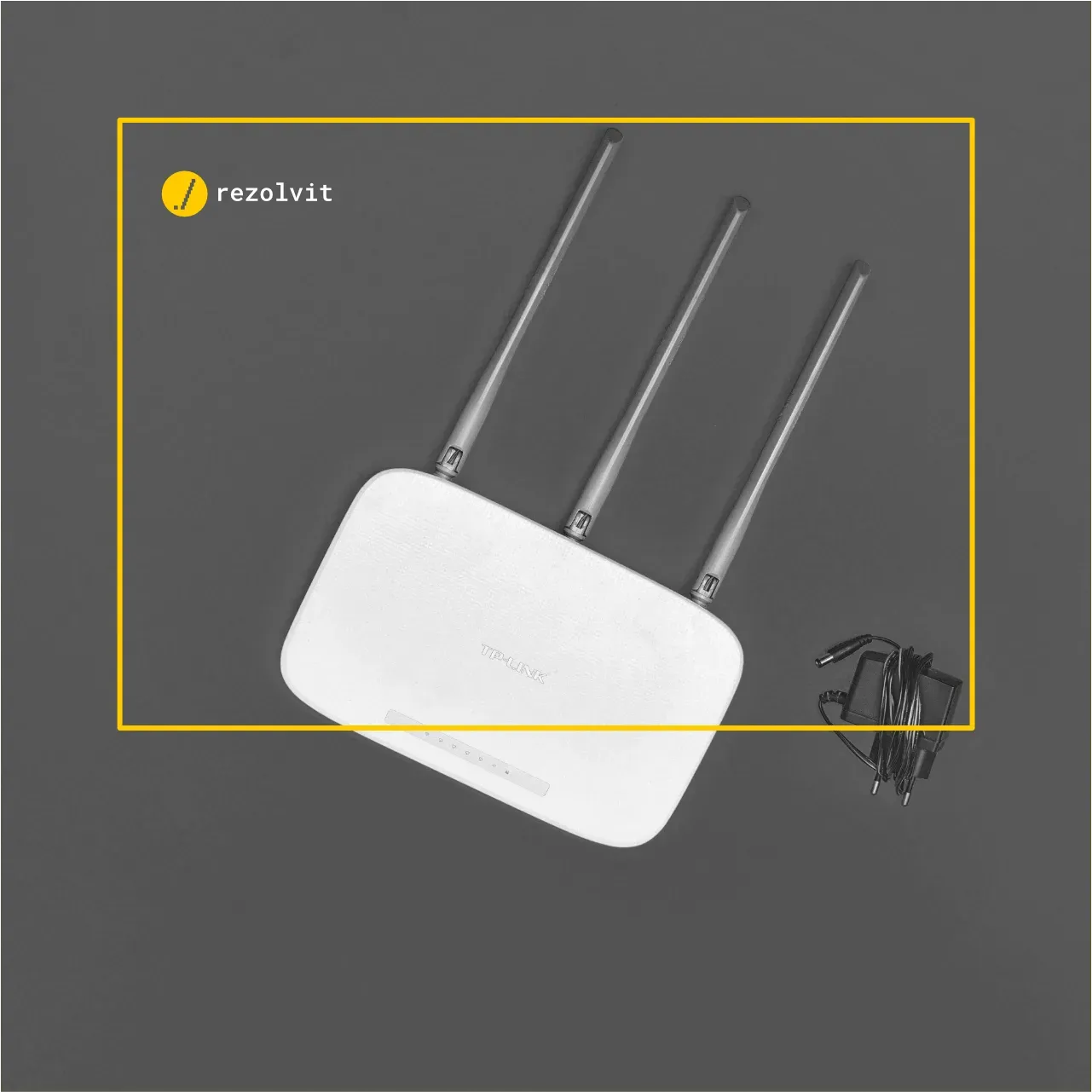
As you probably know, 99% of wireless connection problems are solved by unplugging the router and plugging it back in. That’s the main reason IT support people ask customers to restart the router when there are internet problems.
The most common problems with wireless connections are:
- The internet doesn’t work on Wi-Fi
- The internet is slow on Wi-Fi
- The Wi-Fi network disappears
- Devices can’t connect to the Wi-Fi network
All routers have LEDs that signal any faults. When all services are working, the LEDs are green or blue, either solid or blinking; when problems are detected, they turn red or orange.
Here’s how you can quickly diagnose and check these situations, without any special technical skills.
The internet doesn’t work on Wi-Fi
This is a job for the “Holy Restart.” Unplug the router for 2–5 minutes, then plug it back in and wait for all the lights to come on. If the internet connection isn’t restored after the restart, call your internet provider and check whether there’s an outage in your area.
The internet is slow on Wi-Fi
When this happens, it’s usually either because the router is bogged down or because the device connected to the wireless network is very far from the router, so the signal is weak.
To diagnose this, use a speed testing platform (speedtest). Run one speed test over wireless and another one using a network cable, then compare the results.
If they differ, there really is a problem with the wireless connection. It’s usually caused by interference or by signal strength. You can try using a 5 GHz network or moving the router. Newer routers with Wi-Fi 6E or Wi-Fi 7 also have a 6 GHz network, which is less crowded but has less coverage through walls.
The Wi-Fi network disappears
Make sure the router is out in the open. If it’s placed behind a large object or covered with things, it can overheat and shut down as a result.
Most of the time, this problem shows up when the device suddenly restarts. In these situations, check whether the router is hot and, if so, move it to a better-ventilated spot.
If the problem persists, a router firmware upgrade can help. We won’t go into detail here, since it requires more advanced technical skills. Many new routers, however, update their firmware automatically or do it from the manufacturer’s app with a single tap.
The Wi-Fi network won’t let devices connect
In this situation, the first thing to try is restarting the wireless equipment. If the restart doesn’t solve the problem, it’s good practice to disconnect the device from the network and reconnect it.
You can also try deleting the network name (Forget Network in Windows) and then reconnecting to the network.
As in the previous case, if the problem persists, you can try a firmware upgrade.
If only older devices won’t connect, check the network security settings: some older devices don’t support WPA3. In that case, the router can be set to mixed WPA2/WPA3 mode until those devices are replaced.
Why does the internet work over a cable but not on Wi-Fi?
Because the problem is with the wireless network, not with the internet provider. The most common causes are a weak signal (the router is too far away or behind thick walls), interference from neighboring networks, especially on the 2.4 GHz band, and an old or overloaded router with too many devices connected to it.
What you can try, in order:
- Move the router to a central, raised, open spot, away from thick walls and the microwave oven.
- Connect to the 5 GHz network if your device can see it: it’s faster and less crowded, but it covers a smaller area.
- Change the Wi-Fi channel in the router settings or leave it on automatic selection.
- If the problem appears only in one part of the office, add an access point or a mesh system instead of turning up the router’s power.
When is it worth replacing the router or adding a mesh system?
When the router no longer gets firmware updates from the manufacturer, when it doesn’t cover the whole space or when it doesn’t support WPA3. A router without updates is left with every vulnerability discovered since its last version, so it’s a security problem, not just a speed problem.
If you’re replacing it, here are a few guidelines for 2026:
- Wi-Fi 6 (802.11ax) is the reasonable minimum. Wi-Fi 6E and Wi-Fi 7 add the 6 GHz band, which is less congested but has less coverage through walls.
- WPA3 is the current security standard for Wi-Fi networks. WPA2 with AES encryption remains acceptable only for devices that don’t support WPA3.
- In an office with several rooms, several wired access points or a mesh system provide better coverage than a single powerful router.
- The guest network must be separate from the network the company’s computers and servers are on.
The steps for securing your network are in the article on how to secure your office wireless network, and you’ll find tips for a better signal in the article with 7 ways to improve your wireless signal. Office networks, cabling and network equipment are part of IT infrastructure.
RezolvIT looks after the IT infrastructure of more than 200 companies, taking care of both its security and its smooth running, using state-of-the-art technology. See what our IT maintenance service includes.
Tell us what’s slowing you down. We’ll call you.
It takes 30 seconds, and a specialist will call you back within 2 business hours.
- free IT & AI audit, no obligation
- a report with risks and concrete recommendations
- a clear offer, with a fixed monthly plan
Prefer the phone? 031 432 8681