The best NAS for business: how to choose one
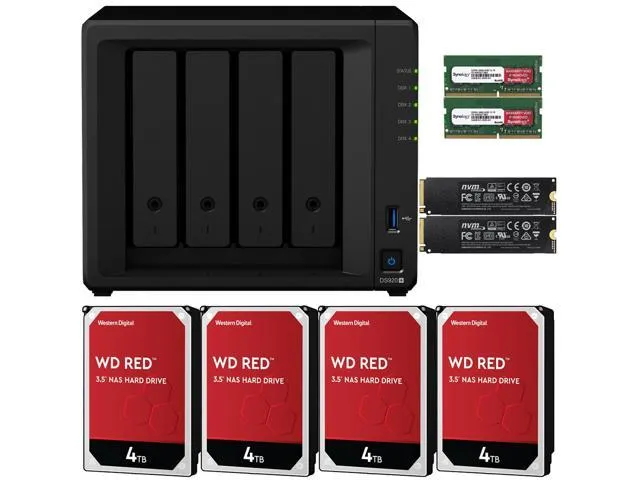
The best NAS for a company is the one that matches its data volume, its number of users and its backup policy. For companies with up to 10 computers, in 2026 we recommend a Synology with two or four drives: the DS223j if the budget is tight, or the DS925+ if the NAS holds important data and needs to grow with the company.
With so many good models, modern features and cutting-edge performance, choosing a NAS is no easy task. We first wrote this guide in 2021; in November 2026 we updated it with the current models and with what has changed in the meantime.
Back up, store and access your data from anywhere
A NAS (Network Attached Storage) can be an important part of your company’s backup policy. We wrote about the best backup policy in the article The 3-2-1 backup policy: what it is and what alternatives exist.
In short, the 3-2-1 rule says you should have three copies of your data (the working data and two backups), on two different types of media (for example a disk, a NAS or tape), with one copy off site, for disaster recovery.
What can a NAS do for a company?
For the uninitiated, NAS devices do much more than store files and can no longer be compared with ordinary external hard drives:
- they have software that turns them into private cloud services;
- they back up computers, phones and servers;
- they have app libraries that you install and manage directly from the NAS;
- they let you reach your files from any computer, anywhere, anytime;
- they let you share files with business partners through unique, secure links;
- they can act as media servers for TVs or mobile devices;
- they can download files from the internet directly, without a computer turned on.
Which HDDs are recommended for a NAS?
Manufacturers that sell NAS units without drives recommend certain HDD models or families, tested with their units. These may or may not be drives they make themselves, so take a look at the compatibility lists before you buy.
Some Seagate, Toshiba and WD drives are labeled as designed specifically for NAS. Most of these “NAS-certified” drives are tested for continuous operation, 24 hours a day, all year round, which is too much for ordinary home drives.
In 2025, Synology required Synology drives, or drives it had verified, for its new Plus series models. After pushback from users, it reversed course in October 2025 with the DSM 7.3 operating system: Plus, Value and J series models once again accept drives from other brands. For M.2 SSDs used as storage space, the restriction remains.
Backup as a Service: tell me more →
Safe space (storage): let’s talk about redundancy
A key advantage of most NAS units is redundancy: in two- or four-drive configurations, the extra drives can “mirror” the contents of the others. The RAID level you choose affects usable capacity compared with the drives installed. Example: a two-bay NAS with two 4 TB HDDs that makes an identical copy of the data from one drive onto the other (RAID 1) gives you only 4 TB of usable space. The second drive is practically invisible, because it holds a second copy of all the files on the first.
The user can usually reconfigure the drives to gain the capacity of the second one too, if they want, but that means giving up the protection.
Keep in mind, though, that redundancy only protects against a drive failure. An accidental deletion or ransomware reaches both drives at the same time. That’s why RAID is not backup.
JBOD (“just a bunch of disks”)
Many NAS units also support JBOD mode (Just a Bunch Of Disks), which lets you use each drive separately. What you can do depends entirely on the software that manages the NAS, so make sure you understand what it can do before you buy.
NAS connectivity
USB
Most NAS units have one or two USB ports for connecting a printer or an external drive and sharing it on the network through the NAS software. Once connected, like the rest of the data on the NAS, these devices can be used by all users. On current models, the ports are usually USB 3.2 Gen 1, fast enough for copying to external drives.
FastCopy
Some NAS units also have a copy button on the front panel: plug in an external drive or a USB stick, press the button and everything on it is copied to the NAS, into a folder set in advance.
Ethernet
NAS units come with at least one Ethernet port, often two, for redundancy or to double the transfer speed (two ports combined into one with twice the speed). In 2026, 2.5 Gbps ports are increasingly common even on models for small businesses, and top models offer 10 Gbps.
NAS units avoid wireless connections, because only a cable delivers the data flow they need when serving several users at once. A fast NAS only matters, though, if the rest of the network (the switch, the computers) is just as fast.
HDMI
Some models also have an HDMI port, which lets you use the NAS as a media server connected directly to a TV. On business models, the HDMI port is increasingly rare.
Remote access: your office files, from anywhere
Besides network sharing, most NAS units let you send links that other people can use to access certain files or folders remotely. The NAS can thus become your own private Dropbox or Google Drive, with much more space and no monthly subscription.
How each manufacturer provides this feature varies. The better NAS units have an app that manages remote access, with an easy-to-use interface and advanced security options, including file encryption.
Pay attention to security: don’t expose the NAS directly to the internet with open ports on the router. In recent years, several waves of ransomware have targeted internet-facing NAS units; for example, in early 2022, the DeadBolt ransomware encrypted data on thousands of QNAP NAS devices. For access from outside the office:
- use a VPN connection or the manufacturer’s secure access service;
- turn on two-step verification for all accounts;
- disable the default “admin” account and use strong passwords;
- install updates to the NAS operating system as soon as they’re released.
Which NAS do we recommend for companies with up to 10 computers?
The budget option: Synology DiskStation DS223j
The DS223j has two bays for 3.5- or 2.5-inch SATA drives, a quad-core Realtek RTD1619B processor at 1.7 GHz, 1 GB of DDR4 memory and a 1 Gbps network port. It supports the Btrfs and ext4 file systems and Synology Hybrid RAID (SHR), Basic, JBOD, RAID 0 and RAID 1 configurations.
It’s a good fit for file sharing and computer backups in a small company. The full specifications are on the Synology DS223j page.
The recommended option: Synology DiskStation DS925+
The DS925+ has four SATA drive bays, a quad-core AMD Ryzen V1500B processor at 2.2 GHz and 4 GB of DDR4 ECC memory, expandable to 32 GB. It has two 2.5 Gbps network ports and two M.2 NVMe slots for cache SSDs, and with the DX525 expansion unit it supports up to nine drives.
It supports Btrfs and ext4 and SHR, Basic, JBOD, RAID 0, RAID 1, RAID 5, RAID 6 and RAID 10 configurations. With four drives in RAID 5 or SHR, the company can lose a drive without losing data. The full specifications are on the Synology DS925+ page.
If two drives are enough for you but you want Plus series performance, there’s also the DS225+, with an Intel Celeron J4125 processor and a 2.5 Gbps port.
What we recommended in 2021
In the first version of this article, we recommended the Synology DS220j (the budget option, with a 1.4 GHz quad-core processor and 512 MB of memory) and the Synology DS920+ (the recommended option, with an Intel Celeron J4125 processor and 4 GB of memory, expandable to 8 GB). Both have since been replaced in the Synology range by the models above.
Does a NAS replace cloud backup?
No. A NAS is a fast local copy, perfect for everyday restores. But a fire, a theft or ransomware that reaches the network can affect both the computers and the NAS. That’s why the 3-2-1 rule also calls for a copy outside the office, usually in the cloud. See also our complete guide to backup strategy.
If you want to find out which NAS suits your company, or you need a complete backup solution, from simply installing a NAS to cloud backup, contact our team or ask for a free IT audit, and we’ll propose the right solution.
Tell us what’s slowing you down. We’ll call you.
It takes 30 seconds, and a specialist will call you back within 2 business hours.
- free IT & AI audit, no obligation
- a report with risks and concrete recommendations
- a clear offer, with a fixed monthly plan
Prefer the phone? 031 432 8681