Apple recommends that users not cover their MacBook’s webcam
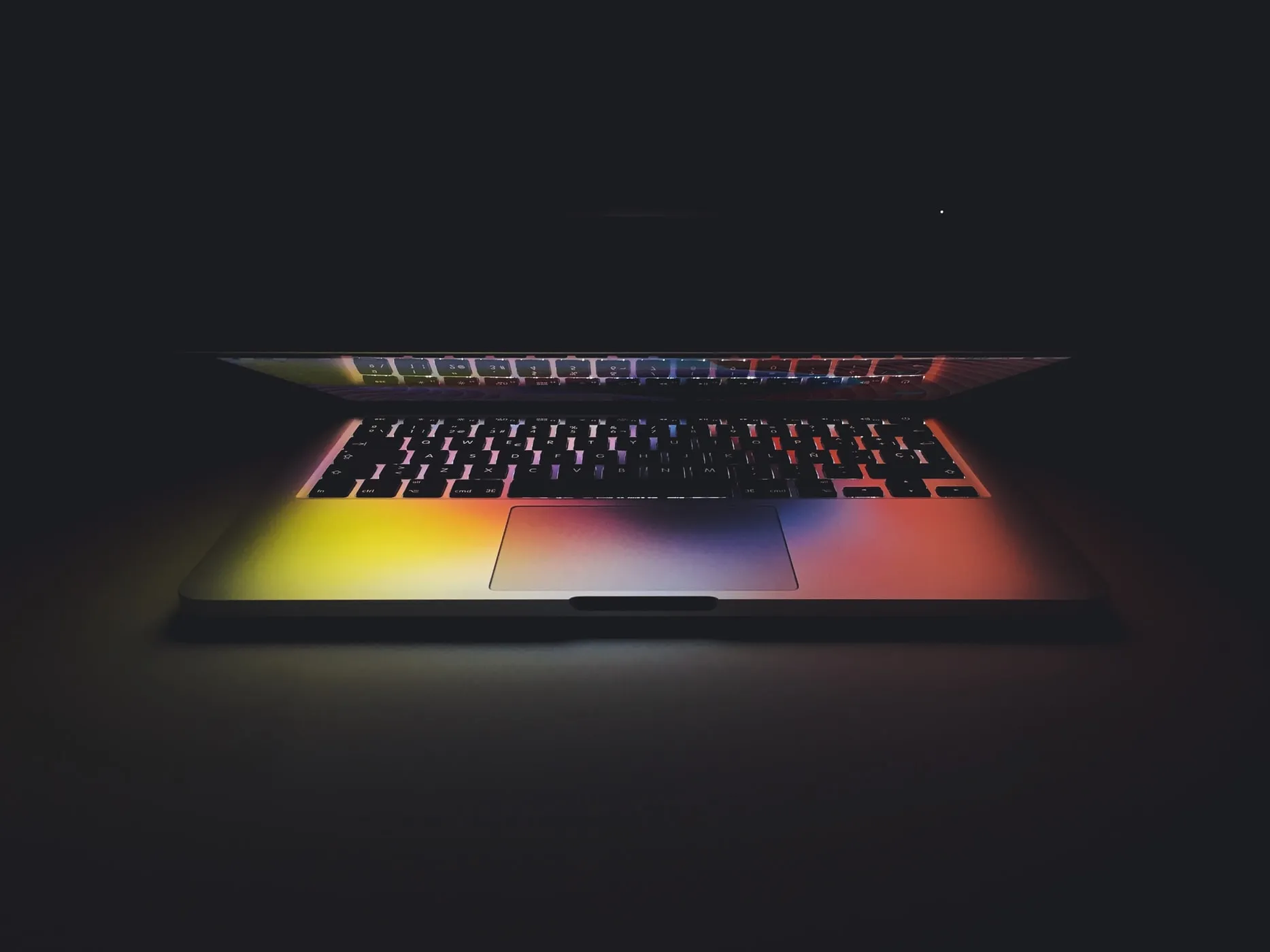
For a while now, there’s been something of a trend of covering your laptop’s webcam, to make sure that if the workstation were ever compromised, a hacker would have no way to spy on you in real time.
In July 2020, Apple published a support page saying that it doesn’t recommend covering the webcam on the MacBook, MacBook Air and MacBook Pro, and it also gives a technical explanation for this. The page is still on Apple’s website: Don’t close your MacBook, MacBook Air, or MacBook Pro with a cover over the camera.
Why doesn’t Apple recommend covering the camera?
Because if you close the laptop with a cover over the camera, you can damage the screen: the space between the screen and the keyboard is very small.
In short, and in non-technical terms, covering the camera can also affect the automatic screen brightness feature, because the cover blocks the ambient light sensor next to the camera. Likewise, the True Tone feature, which adjusts the warmth of the colors to the lighting conditions, may stop working properly.
Apple says the webcam can’t be turned on without the green indicator light coming on too, since the two are connected to each other. That makes it very easy to see whether the webcam is active or not.
What do you do if company rules require covering the camera?
If your workplace rules still require the webcam to be covered, Apple makes the following recommendations:
- Don’t cover the camera with material thicker than 0.1 mm (about the thickness of a sheet of printer paper).
- Don’t use adhesive tape or covers that could leave adhesive residue on the screen.
- If you use material thicker than 0.1 mm to cover the camera, remove it before closing the laptop.
An alternative to a physical cover: the IT department can remotely disable the camera on company laptops that don’t need it, through the mobile device management (MDM) solution, and can block camera access for certain apps.
How do you choose which apps can use the camera?
Starting with macOS Mojave, apps need your permission to access the camera, and you can choose which apps can access the camera and which can’t. On current versions of macOS, the settings are in System Settings > Privacy & Security > Camera. On macOS 12 and earlier, you’ll find them in System Preferences > Security & Privacy > Privacy > Camera.
Check the list from time to time and remove the permission for apps you no longer use.
From a security standpoint, Apple systems are designed according to fairly strict security rules. However, we have no way of knowing whether Apple also issued this statement to reduce the number of laptops that end up at repair shops or under warranty with damaged screens.
Security specialists are divided on this subject. What matters more than covering the camera is keeping the laptop from being compromised: timely updates, secure passwords and two-step verification. See also the mandatory security measures for work laptops used at home.
RezolvIT has both the technical means and the knowledge needed to manage any kind of IT infrastructure, including one made up entirely of Apple products, through our IT maintenance service. If we’ve piqued your interest, don’t hesitate to contact us.
Tell us what’s slowing you down. We’ll call you.
It takes 30 seconds, and a specialist will call you back within 2 business hours.
- free IT & AI audit, no obligation
- a report with risks and concrete recommendations
- a clear offer, with a fixed monthly plan
Prefer the phone? 031 432 8681